
How to enable multi-factor authentication
You can add an extra layer of security to your account by enabling multi-factor authentication (MFA). Protecting your health data is one of our top priorities at SelfDecode, and MFA helps keep your information safe.
How MFA works
With MFA, you'll sign in with your email and password as usual, then confirm your login with a code sent to your registered email address. This means that even if your password is ever compromised, only you can access your data.
MFA guidelines
- MFA is strongly recommended for all SelfDecode users.
- You'll need access to your registered email address to complete setup.
- Once enabled, MFA is required every time you log in to your SelfDecode account.
- If you lose access to your email address, contact support to regain account access.
How to enable MFA
-
Log in and select Enable Multi-Factor Authentication when you see the option.
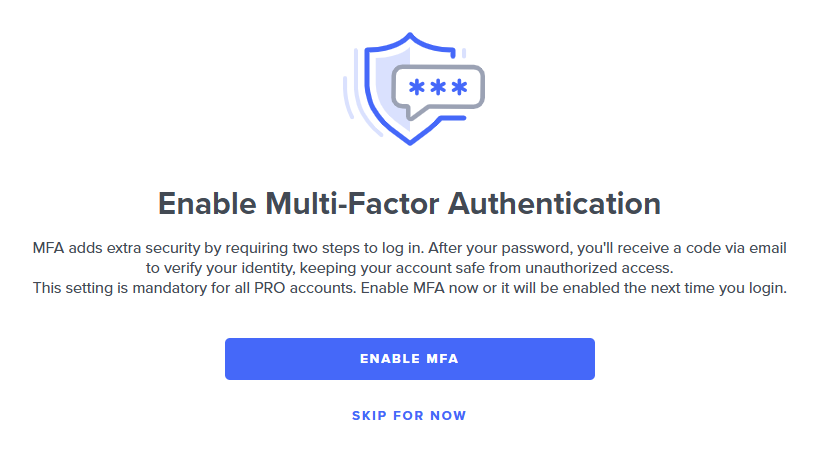
- Select Enable MFA to finish setup, or Skip for now if you're not ready. You'll be prompted to set up MFA the next time you log in.
-
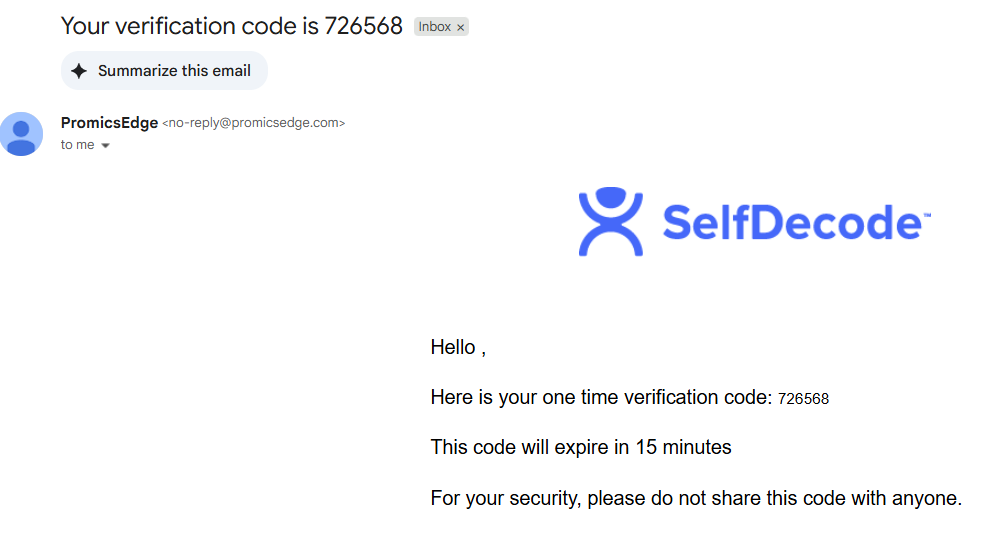
Check your inbox for your verification code.
-
Enter your verification code on the SelfDecode webpage.
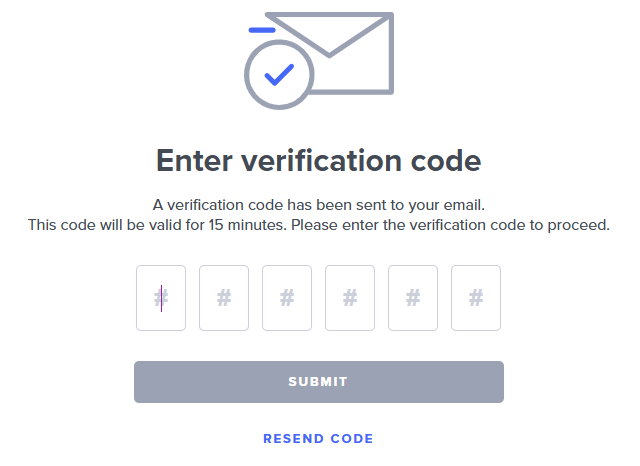
- Select Submit.
-
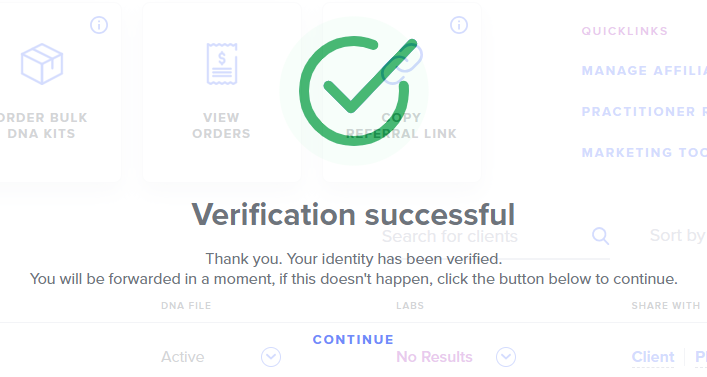
Your MFA verification is granted and you'll gain access to your account.
What if I don't receive the MFA email?
If you don't receive the MFA verification email, check your spam or junk folder first. In most cases this is a filtering setting in your email account rather than an issue on our end. If you've checked your spam folder and still can't find the email, contact our support team at support@selfdecode.com for assistance.
How to disable MFA on your account
We strongly recommend keeping this feature enabled, to keep your sensitive data safe! However, if you prefer to have this feature turned off, you can disable/enable it on the My Account settings page.