
How to Upload a 3rd-Party DNA File for Your Client
If a client already has a raw DNA file and does not need a kit, you can upload their file when creating their profile. Note that some reports are not available with third-party files.
How to add a client and upload their file
-
Click Add Client from your main dashboard.
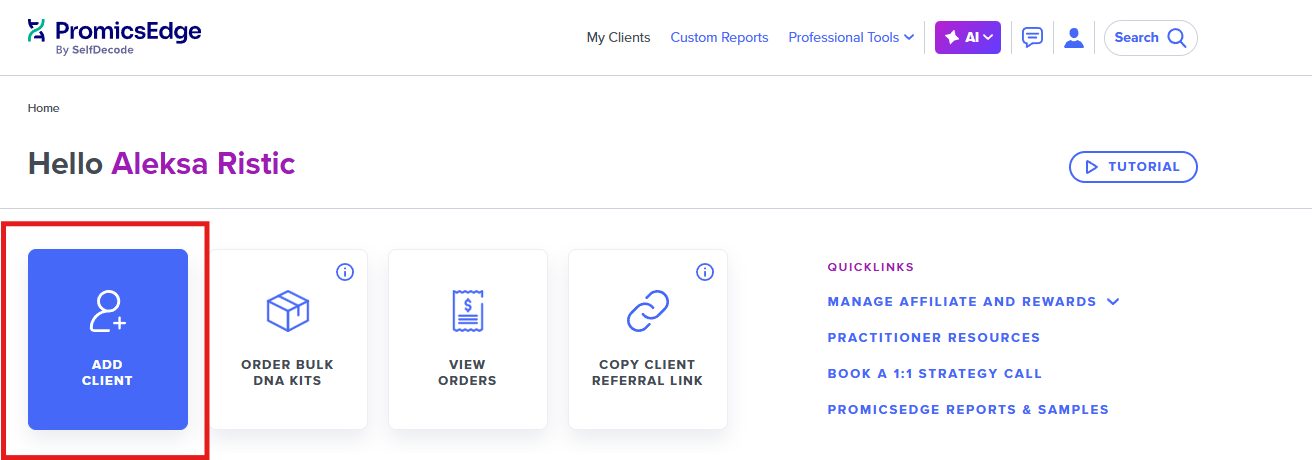
- Choose the reports you want to unlock for that client. Reports marked with an asterisk (*) require a PromicsEdge DNA file and are not available with third-party files.
-
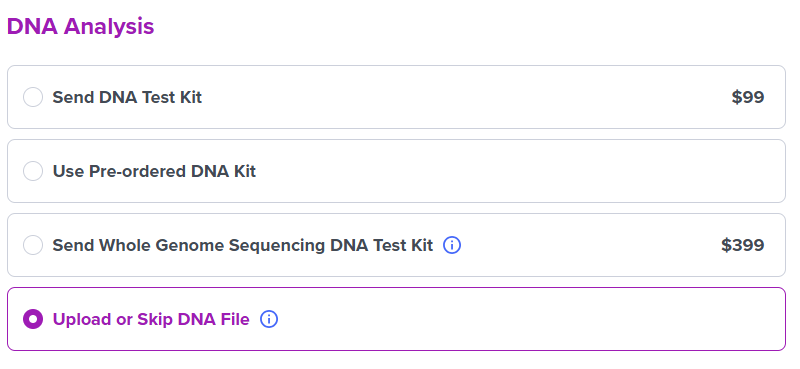
Under the DNA Analysis section, select Register a pre-ordered dna kit or send a wgs kit or upload a file, or skip. Then, select Upload or Skip DNA File:
-
After you create the client, they appear on your dashboard. In the DNA file column, click the dropdown arrow next to Missing and select Upload DNA file.
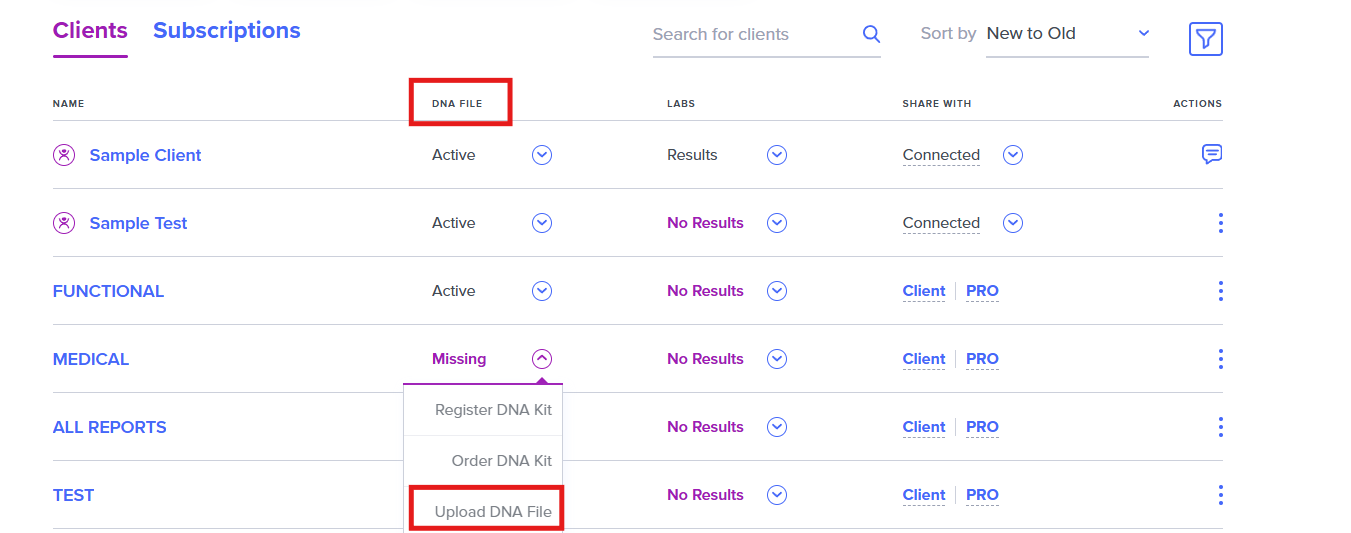
After a successful upload, the status changes to Scanning. File scanning may take a couple of hours. Once complete, the status changes to Active and you can access all purchased reports for that client.